
Castle for Firestick – How to Install & Use It in 2026
Castle works on Amazon Fire TV devices through Castle TV, a version of the app built specifically for the big screen and remote-control navigation. Since Fire TV runs on an Android-based system, you can install Castle TV directly from its APK file in just a few minutes.
In this guide, you'll learn how to install Castle on your Firestick, what you need before you start, and how to fix the most common problems.
Can You Install Castle on Firestick?
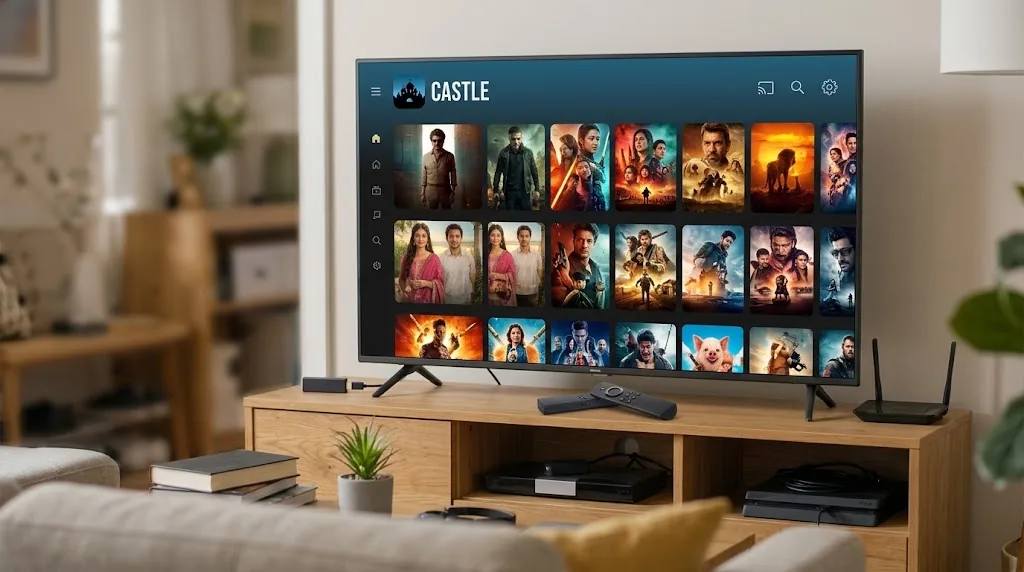
Yes. Castle can be installed on any Fire TV device that supports Castle TV v1.1.3. Castle is not listed on the Amazon Appstore, so you install it by sideloading the APK with the Downloader app.
The process only involves two things: allowing Downloader to install apps, and downloading the Castle TV APK from the official site. You don't need a computer, a USB drive or any technical knowledge.
What You Need Before Installing Castle
Before you begin, make sure you have:
- A Fire TV Stick, Fire TV Stick 4K, Fire TV Stick Lite, Fire TV Cube or Fire TV smart TV
- Fire OS 6 or later
- A stable internet connection
- The Downloader app
- At least 100 MB of free storage on your Firestick
- The official Castle download address: castletvapk.net
Having these ready makes the installation smooth and helps you avoid common setup errors.
How to Install Castle on Firestick
Castle TV is installed through the Downloader app, the easiest and most popular way to sideload apps on Fire TV. Follow these five steps.
Step 1: Install Downloader on Firestick
From the Firestick home screen, select Find, then Search, and type Downloader. Select the Downloader app from the results and choose Get or Download. Once it's installed, open Downloader once and allow any permissions it asks for.
Step 2: Enable Apps From Unknown Sources
Fire TV only installs apps from the Amazon Appstore by default, so you need to give Downloader permission to install Castle TV.
- Open Settings on your Firestick.
- Select My Fire TV.
- Open Developer Options.
- Select Install Unknown Apps.
- Find Downloader and turn it ON.
If you don't see Developer Options, go to My Fire TV, then About, and click your device name seven times. A message will confirm that Developer Options are now available.
Step 3: Open Downloader and Enter the Castle URL
Open Downloader and go to the Home tab. Select the URL box, type castletvapk.net using the on-screen keyboard, and select Go. Double-check the address before you continue, so you download only from the official source.
Step 4: Download the Castle TV APK
When the Castle page loads, choose the Castle TV APK (v1.1.3, 21 MB). The file is small, so the download usually finishes in under a minute on a normal home connection.
Step 5: Install Castle on Firestick
When the download finishes, Downloader opens the installation screen automatically. Select Install and wait for the confirmation message. Then choose Open to launch Castle TV straight away, or Done to return to Downloader.
Downloader may ask whether you want to delete the APK file. Select Delete to free up storage. Castle TV stays installed on your Firestick.
How to Move Castle to Your Firestick Home Screen
New apps appear at the end of your apps list, so it's worth moving Castle TV to the front for quick access.
Press and hold the Home button on your remote and select Apps. Highlight Castle TV, press the Options button (the one with three lines), and choose Move to Front. Castle TV will now appear in the top row of your apps.
How to Use Castle for Firestick
When you open Castle TV, you'll see the main sections across the top of the screen, including Movies, Series, Live TV, Cricket and Anime. Use the direction buttons on your remote to move between sections and press Select to open a title.
Castle TV includes a few features that make big-screen viewing more comfortable:
- Skip intro, so you can jump straight to the episode
- Offline downloads for watching without internet
- Parental controls for family viewing
- An English and Hindi interface, switchable in settings
Does Castle Work With the Firestick Remote?
Yes. Castle TV is designed for remote-control navigation, so you can browse, search and control playback with your standard Fire TV remote. Use the direction pad to move, Select to play or pause, and the Back button to return to the previous screen.
Castle Firestick Requirements
| Requirement | Details |
|---|---|
| Device | Fire TV Stick, Stick 4K, Stick Lite, Fire TV Cube or Fire TV smart TV |
| Operating System | Fire OS 6 or later |
| App | Castle TV v1.1.3 |
| APK Size | 21 MB |
| Installation | Downloader app |
| Internet | Stable Wi-Fi connection |
For HD streaming, a steady Wi-Fi connection matters more than anything else. If your router supports it, connect your Firestick to the 5 GHz band.
How to Fix Castle Not Installing on Firestick
If the installation fails, first check that Install Unknown Apps is turned ON for Downloader. Then make sure your Firestick has enough free storage, and that the download completed without interruption.
If the problem continues, delete the downloaded file, restart your Firestick by holding the Select and Play buttons together for five seconds, and download the APK again from castletvapk.net. Older Fire TV devices running Fire OS 5 cannot install Castle TV.
Castle Keeps Crashing or Not Opening
If Castle TV closes on its own or won't open, go to Settings, then Applications, then Manage Installed Applications, and select Castle TV. Choose Force Stop, then Clear Cache, and open the app again.
If that doesn't help, uninstall Castle TV and install a fresh copy of the latest version. Running an outdated or incomplete APK is the most common cause of crashes.
How to Fix Castle Buffering on Firestick
Buffering is almost always caused by the internet connection rather than the app. Restart your router and Firestick, and check whether other streaming apps are buffering too.
You can also:
- Move the router closer to your TV or use the 5 GHz Wi-Fi band
- Close other apps running in the background
- Pause other heavy downloads on your home network
- Use offline downloads for titles you want to watch without interruption
How to Update Castle on Firestick
Sideloaded apps don't update automatically through the Amazon Appstore, so you update Castle TV manually. Open Downloader, enter castletvapk.net, download the latest Castle TV APK and install it over your current version. You don't need to uninstall the old version first.
Is Castle Safe to Use on Firestick?
Castle TV is safe when you install the official APK from castletvapk.net. Avoid modified or repackaged files from other websites, as you can't be sure what they contain. During installation, check that the app name and version match Castle TV v1.1.3.
Can You Uninstall Castle From Firestick?
Yes. Go to Settings, then Applications, then Manage Installed Applications, select Castle TV and choose Uninstall. This also removes the app's data and any offline downloads stored on your Firestick.
Castle for Firestick vs Android Phone
| Feature | Castle TV (Firestick) | Castle (Android Phone) |
|---|---|---|
| App Version | v1.1.3 | v2.1.3 |
| APK Size | 21 MB | 34.5 MB |
| Screen | TV big screen | Phone or tablet |
| Navigation | Fire TV remote | Touch screen |
| Portable Viewing | No | Yes |
| Offline Downloads | Yes | Yes |
| Hindi Interface | Yes | Yes |
| Installation | Downloader app | Phone browser |
Castle TV on Firestick is the better choice for family viewing and live cricket on a big screen, while the phone app suits watching on the go.
Frequently Asked Questions
Which Castle APK should I install on Firestick?
Install Castle TV v1.1.3. It is built for TV screens and remote navigation, unlike the phone version.
Can I install the phone version of Castle on Firestick?
It may install, but the phone version is designed for touch screens and won't work smoothly with a remote. Castle TV is the right choice for Fire TV.
Is Castle available on the Amazon Appstore?
No. Castle TV is installed from its APK using the Downloader app, as shown in the steps above.
Does Castle work on Fire TV Stick Lite and Fire TV Cube?
Yes. Castle TV works on the Fire TV Stick Lite, Fire TV Stick 4K, Fire TV Cube and Fire TV smart TVs running Fire OS 6 or later.
Is Castle free on Firestick?
Yes. Castle TV is free to use, with no sign-up and no ads.
Can I switch Castle TV to Hindi?
Yes. Open the app settings and change the interface language to Hindi. You can switch back to English at any time.
Can I download movies on Firestick to watch offline?
Yes. Castle TV supports offline downloads. Firestick storage is limited, so delete titles you've finished watching to make room for new ones.
Does Castle TV have a skip intro option?
Yes. Castle TV lets you skip intros, so you can start each episode straight away.
Can I use Castle on a Samsung smart TV?
Samsung smart TVs run Tizen, which can't install Android apps directly. Plug a Fire TV Stick into your Samsung TV's HDMI port and install Castle TV on the stick instead.
Does Castle on Firestick work without the internet?
You need internet to stream and to install the app. Titles you've already downloaded can be watched offline.
Conclusion
Installing Castle on Firestick takes only a few minutes: enable unknown apps for Downloader, enter castletvapk.net, and install Castle TV v1.1.3. Once it's set up, you can enjoy movies, web series, anime and live cricket on your TV, free and without ads.
For the smoothest experience, keep Castle TV updated and use a stable Wi-Fi connection. If you run into a problem, the troubleshooting steps above cover the most common fixes.