
Castle for PC – How to Download & Install on Windows
Want to watch Castle on a bigger screen? Castle is built for Android rather than Windows or macOS, but you can still run the Castle APK on your computer with an Android emulator. This guide explains how to install it, what you need, and how to get the smoothest experience on your PC.
Windows · Laptop · Desktop · Mac · Android Emulator
Can You Use Castle on a PC?
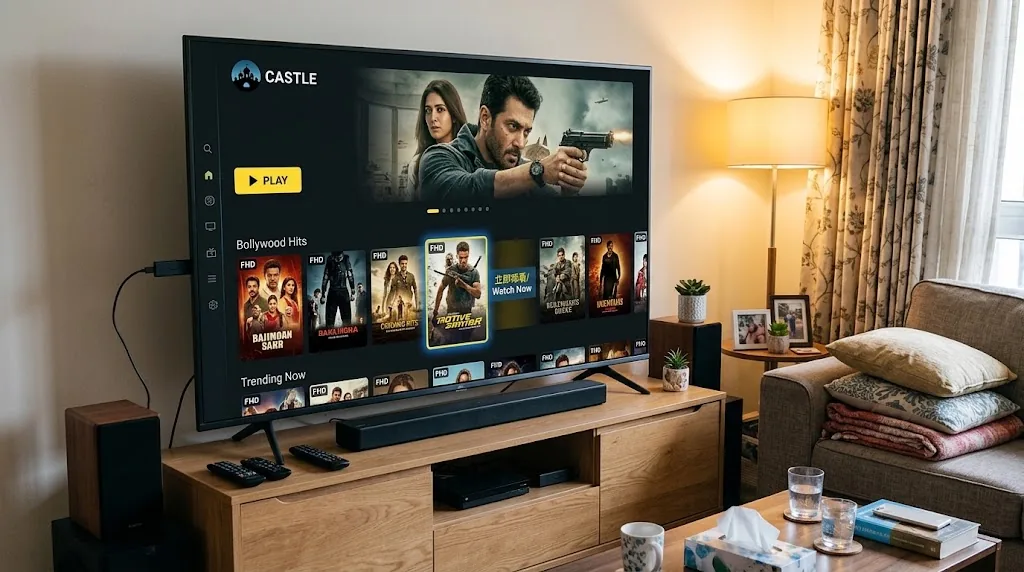
Yes, with one important point: Castle does not have a native Windows or macOS application. The app is distributed as an Android APK, so it needs an Android environment to run on a computer.
The easiest way to get that environment is an Android emulator. We recommend MuMu Player, which creates an Android system inside a window on your desktop. Once Castle is installed there, it works just like it does on an Android phone.
This method works on both desktop computers and laptops. You can browse the full Castle library, search for titles, watch live cricket and switch the interface to Hindi, all with a keyboard and mouse.
What You Need to Run Castle for PC
Castle itself is a light app. The emulator does the heavy lifting, so your experience depends mostly on your computer. The table below is a practical setup guide, not an official system requirement list.
| Requirement | Recommended |
|---|---|
| Operating System | Windows 7, 8, 10 or 11, or macOS |
| Processor | Intel or AMD CPU with virtualization support |
| RAM | 4 GB minimum, 8 GB or more for smoother playback |
| Storage | Enough free space for the emulator and the 34.5 MB Castle APK |
| Graphics | Up-to-date graphics drivers |
| Emulator | MuMu Player |
| Internet | Stable broadband or Wi-Fi |
An emulator shares your computer's memory and processor with other programs, so closing heavy applications before you start makes a noticeable difference.
How to Install Castle on PC
Since Castle is an Android APK, you'll install it inside MuMu Player. The whole process takes about ten minutes, most of which is the emulator installation.
Step 1 – Install MuMu Player
Go to the official MuMu Player website and download the installer for your system. Run the installer, follow the on-screen instructions, and open MuMu Player when it finishes. The first launch can take a minute or two while the Android system loads.
Step 2 – Download the Castle APK
Open your PC browser and download the latest Castle APK (v2.1.3, 34.5 MB) from the button below. Save the file somewhere easy to find, such as your Desktop or Downloads folder.
Use the phone version of Castle on PC, not the TV version. The phone version works best with a mouse and keyboard.
Step 3 – Open the APK in MuMu Player
With MuMu Player running, drag the Castle APK file from your folder and drop it into the emulator window. You can also use the Install APK option in MuMu Player's toolbar and select the file. MuMu Player installs the app automatically.
Step 4 – Launch Castle
When the installation is complete, the Castle icon appears on the MuMu Player home screen. Click it to open the app and start browsing movies, web series, live TV and cricket. There's no sign-up, so you can start watching right away.
How to Use Castle on Windows 11
Windows 11 does not offer a native Castle app, but MuMu Player runs smoothly on it. Install the emulator, add the Castle APK, and open the app from the emulator home screen, exactly as described in the four steps above.
Once Castle is running, you can maximise the MuMu Player window or switch it to full screen for a TV-like experience on your monitor. Click to select titles, scroll with your mouse wheel, and type into the search bar with your keyboard.
Does Castle Work on Windows 10?
Yes. Castle runs on Windows 10 through MuMu Player in the same way it does on Windows 11. MuMu Player also supports Windows 7 and Windows 8, so older computers can use Castle too.
On older PCs, the main thing to check is whether your computer has enough RAM and whether virtualization is enabled. With those in place, the installation process is the same: install MuMu Player, add the Castle APK and launch the app.
Can You Use Castle on Mac?
Castle has no native macOS app, but MuMu Player offers a Mac version. Install MuMu Player for Mac, download the Castle APK from castletvapk.net, and open the file inside the emulator to install it.
Performance on a Mac depends on the model and the macOS version. Check MuMu Player's current Mac requirements before installing to make sure your computer is supported.
Why Use Castle on a PC?
Running Castle on your computer isn't just about the bigger screen. A desktop setup can make browsing and watching more comfortable in several ways.
🖥️ Larger Display
A laptop or monitor gives you far more screen space than a phone, which makes movies and live cricket more enjoyable.
⌨️ Easier Navigation
Typing titles into search and scrolling through categories is faster with a full keyboard and mouse.
🔊 Better Setup
Connect your PC to external speakers, headphones or a larger display for a richer home viewing setup.
📱 Android App on Desktop
Use the full Castle Android app on your computer without needing a separate phone or tablet.
Keep in mind that streaming quality still depends on your internet connection. A bigger screen doesn't automatically mean faster loading.
Castle PC vs Android
The best option depends on how and where you usually watch.
| Feature | PC with Emulator | Android Device |
|---|---|---|
| Installation | MuMu Player required | Direct APK installation |
| Screen | Larger display | Phone or tablet |
| Keyboard & Mouse | Supported | Touch controls |
| Performance | Depends on PC and emulator | Depends on Android hardware |
| Portability | Limited | Excellent |
| External Display | Easy to connect | Depends on device |
| Setup | More steps | Simpler |
For longer viewing sessions at a desk, a PC is more comfortable. For watching on the move, the Android phone app is the more practical choice.
Castle Not Working on PC?
If Castle isn't working properly inside MuMu Player, the cause is usually the APK, the emulator settings or your computer's resources. Try these fixes before reinstalling everything.
APK Won't Install
Make sure the APK downloaded completely and wasn't interrupted. Download the file again from castletvapk.net and try installing it with MuMu Player's Install APK option instead of drag and drop.
Castle Keeps Crashing
Restart MuMu Player and close other heavy programs running on your PC. If the problem continues, uninstall Castle inside the emulator and install the latest version again.
Video Is Buffering
Buffering usually comes from the internet connection rather than the PC. Check your connection, restart your router, and pause any large downloads running on your network.
Emulator Is Running Slowly
Enable virtualization (VT) in your computer's BIOS settings. It's one of the most effective ways to speed up any Android emulator. Updating your graphics drivers and giving MuMu Player more RAM in its settings also helps.
APK Doesn't Open
If the Castle icon appears but the app won't launch, restart the emulator and try again. If it still doesn't open, remove the app and install a fresh copy of the latest APK.
Is It Safe to Run Castle on PC?
Running Castle on PC is safe when you use the official APK from castletvapk.net and a trusted emulator downloaded from its official website. Castle runs inside the emulator's Android environment, separate from your Windows files.
Avoid any file that claims to be a "Castle for Windows" installer or comes as an .exe. The genuine Castle app is only distributed as an Android APK. Keep your emulator, operating system and security software up to date.
Castle for PC FAQs
Is there a Castle .exe file for Windows?
No. Castle is only available as an Android APK. Any .exe file claiming to be Castle for Windows is not the official app.
Is Castle free to use on PC?
Yes. Castle is free on PC just like on Android, with no sign-up and no ads.
Should I use the phone APK or the TV APK on PC?
Use the phone APK (v2.1.3). It's designed for touch and pointer input, so it works well with a mouse. The TV version is built for remote controls.
Do I need a Google account to use Castle in MuMu Player?
No. You install Castle directly from the APK file, so you don't need to sign in to any account to install it or watch.
Can I switch Castle to Hindi on PC?
Yes. Open the Castle app settings inside the emulator and switch the interface to Hindi.
Can I download movies offline on PC?
Yes. Castle's offline downloads work inside the emulator. Downloaded titles are saved in MuMu Player's storage on your computer.
Does Castle for PC work on a laptop?
Yes. Any Windows laptop or Mac that can run MuMu Player can run Castle, including mid-range and older laptops.
Final Thoughts
Using Castle for PC is easy even though the app is designed for Android. Install MuMu Player, download the Castle APK v2.1.3, and open it inside the emulator. Within minutes you'll be watching movies, web series and live cricket on your computer.
If you run into problems, checking the APK, enabling virtualization, updating graphics drivers and testing your internet connection will solve most issues.